
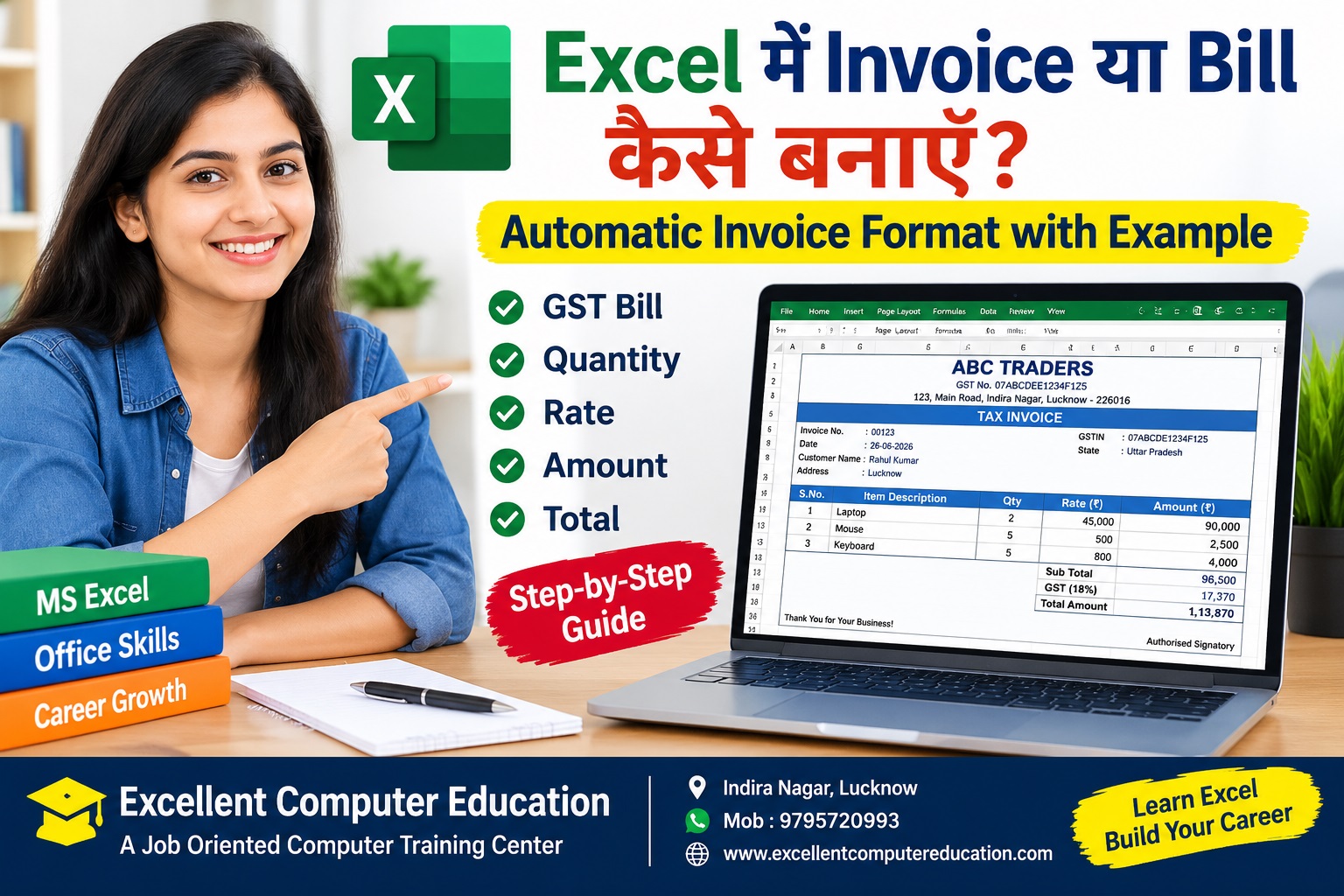
क्या आप Microsoft Excel में Invoice या Bill बनाना सीखना चाहते हैं? Excel की मदद से आप Sales Bill, Purchase Bill, Service Invoice और GST Invoice का format तैयार कर सकते हैं। इस पोस्ट में हम आपको आसान हिंदी में Invoice बनाना, Quantity और Rate से Amount निकालना, GST calculate करना और एक Automatic Sample Invoice तैयार करना सिखाएँगे।
यह ट्यूटोरियल विद्यार्थियों, दुकानदारों, Data Entry Operators, Accountants और MIS Executives के लिए उपयोगी है।
Excel Invoice क्या होता है?
Invoice एक व्यावसायिक दस्तावेज है जिसमें Seller की जानकारी, Customer का नाम, Invoice Number, Date, Product या Service, Quantity, Rate, Tax और कुल देय राशि दी जाती है। Excel में Formula लगाकर Invoice की गणना Automatic की जा सकती है।
Excel में Invoice बनाने के लिए जरूरी जानकारी
- Business या Seller का नाम और पता
- Customer का नाम और पता
- Invoice Number और Invoice Date
- Product या Service का नाम
- Quantity और Rate
- Amount, Discount और लागू होने पर GST
- Grand Total और Payment Details
Automatic Invoice Sample Format
नीचे दिया गया sample एक browser-based invoice calculator है। Quantity, Rate, Discount और GST बदलकर calculation का अभ्यास करें। यह demo invoice है, वास्तविक Excel file नहीं।
SAMPLE SALES INVOICE
Business Name: Your Business Name
Invoice No: INV-001
| Item | Qty | Rate (₹) | Amount (₹) |
|---|---|---|---|
| ₹5,000.00 | |||
| ₹500.00 |
Subtotal: ₹5,500.00
Discount Amount: ₹0.00
GST Amount: ₹990.00
Grand Total: ₹6,490.00
Note: यह educational demo है। GST rate और tax treatment वास्तविक transaction पर लागू नियमों के अनुसार verify करें।
Excel में Invoice बनाने के Formulas
मान लीजिए Excel worksheet में निम्न columns हैं:
| Column | Details | Example Formula |
|---|---|---|
| A | Item Name | Product name |
| B | Quantity | 2 |
| C | Rate | 500 |
| D | Amount | =B2*C2 |
1. Item Amount Formula
=B2*C2
अगर Quantity 2 और Rate ₹500 है, तो Amount ₹1,000 होगा।
2. Subtotal Formula
=SUM(D2:D10)
3. Discount Formula
यदि Discount प्रतिशत F2 में है:
=E2*F2/100
यहाँ E2 में Subtotal होना चाहिए।
4. GST Formula
यदि Discount Amount G2 और GST Rate H2 में है:
=(E2-G2)*H2/100
5. Grand Total Formula
=E2-G2+I2
यहाँ I2 में GST Amount है। अपने worksheet में cell references के अनुसार formula बदलें।
Excel Invoice को Professional कैसे बनाएँ?
- सबसे ऊपर Business Name और Logo लगाएँ।
- Invoice Number और Date के लिए अलग जगह रखें।
- Table headings को Bold और रंगीन करें।
- Amount और Grand Total को Currency Format में रखें।
- Page Layout में A4 Paper और Print Area सेट करें।
- Print Preview में margins और page scaling चेक करें।
- Invoice को Excel Workbook और PDF दोनों रूपों में सुरक्षित रखें।
GST Invoice बनाते समय ध्यान देने वाली बातें
GST-registered business के लिए लागू नियमों के अनुसार GSTIN, supplier और recipient details, invoice number, date, taxable value, लागू tax rate तथा अन्य आवश्यक विवरण शामिल करें। Intra-state supply में लागू होने पर CGST और SGST तथा inter-state supply में लागू होने पर IGST का सही treatment सुनिश्चित करें। सभी बिक्री पर 18% GST लागू नहीं होता। अपनी वस्तु या सेवा की सही tax classification और लागू दर की पुष्टि करें।
Excel Invoice Practice Assignment
- एक नया Excel Workbook बनाएँ।
- कम से कम 5 Products की सूची बनाएँ।
- Quantity और Rate भरें।
- Amount के लिए multiplication formula लगाएँ।
- Subtotal निकालने के लिए SUM function लगाएँ।
- Discount और GST calculation जोड़ें।
- Grand Total निकालकर invoice को PDF में export करें।
अक्सर पूछे जाने वाले प्रश्न (FAQs)
1. Excel में Invoice कैसे बनाएँ?
Excel में Seller Details, Customer Details, Invoice Number, Product, Quantity और Rate की columns बनाएँ। Amount के लिए Quantity × Rate formula तथा Total के लिए SUM function का उपयोग करें।
2. क्या Excel में Automatic Bill बनाया जा सकता है?
हाँ। Excel formulas की मदद से Amount, Discount, Tax और Grand Total automatic calculate किए जा सकते हैं।
3. Excel Invoice को PDF में कैसे Save करें?
File menu में जाकर Export या Save As विकल्प चुनें और PDF format select करें। Save करने से पहले Print Preview जाँच लें।
4. क्या Excel में GST Invoice बनाया जा सकता है?
हाँ, लेकिन GST invoice की आवश्यक जानकारी और tax calculations संबंधित GST नियमों के अनुसार सही होनी चाहिए।
5. Invoice बनाने के लिए कौन-सा Excel Function उपयोग होता है?
मुख्य रूप से multiplication operator (*), SUM और जरूरत के अनुसार ROUND, IF तथा अन्य functions उपयोग किए जा सकते हैं।
Excel सीखें – Excellent Computer Education
अगर आप Advanced Excel, Computer Applications, MIS Reporting और Office Work की practical training लेना चाहते हैं, तो Excellent Computer Education से संपर्क कर सकते हैं।
Excellent Computer Education
Authorised Training Center – NIELIT, AICPE
Address: UG-10, Goel Palace, Faizabad Road, Indira Nagar, Lucknow – 226016
Mobile / WhatsApp: 9795720993
Website: excellentcomputereducation.com