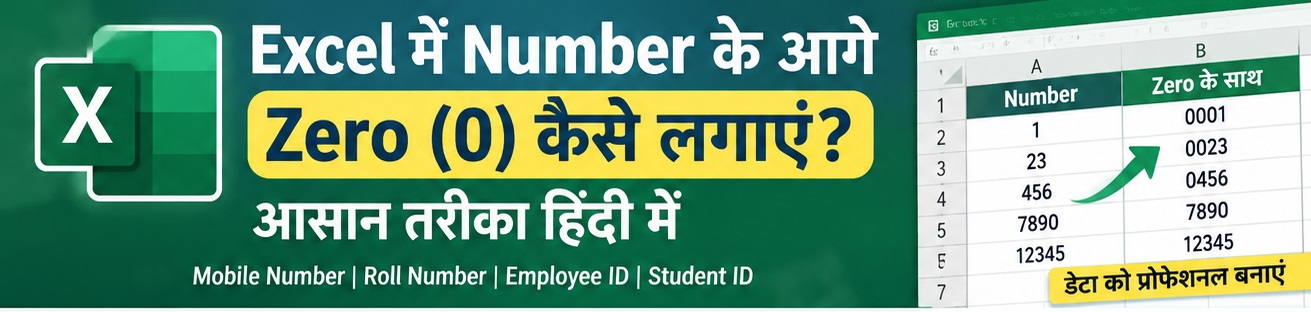
How to Insert Dash (-) between Numbers in Excel in Hindi- आज की इस पोस्ट में हम जानेंगे की कैसे हम एक्सेल में नंबर के एक सेट को डैश (-) की सहायता से अलग-अलग कर सकते है, जैसे- मान लीजये आपके पास कुछ नंबर है 9415823625 और आप चाहते है की यह नंबर निम्न फॉर्मेट (941-582-3625) के अनुसार सेपरेट हो जाए तो यह कार्य आप एक्सेल में किस प्रकार से आसानी से कर सकते है चलिए वह हम समझते है:-
How to add Dash between Numbers in Excel

यहाँ हमने आपको समझाने के लिए कुछ आधार नंबर को शीट में लिए है यह नंबर एक बहुत बड़ी मात्रा में भी हो सकते है. आप जानते है की आधार नंबर 12 डिजिट के होते है और आप चाहते है की यह आधार नंबर 4 नंबर के सेट में हर 4 नंबर के बीच में डैश (-) इन्सर्ट हो जाए तो इसके लिए नीचे दिए गए चरणों का पालन करे :-
Add Dashes To Aadhar Numbers With Formulas
चरण-1 :- सबसे पहले जिस सेल में आपको फार्मूला इन्सर्ट करना है उस सेल में कर्सर को रखे जैसे यहाँ हमें सेल C2 में फार्मूला को इन्सर्ट करना है इसलिए हमने सेल C2 में कर्सर को रखा है.
चरण-2 अब सेल C2 में निम्न फार्मूला दर्ज करे =Text(A2,”#### – #### – ####”) और इंटर बटन प्रेस करे.

अब आपको रिजल्ट प्राप्त हो जायेगा.
चरण-3 अब इस फार्मूला को बाकि की सभी सेल पर ड्रैग कर दे.

How to use Excel Textjoin Function in Hindi
How to use Flash Fill in Excel with Example in Hindi
Add Dashes To Aadhar Numbers With Format Cells
अब नंबर के बीच डैश(-) को इन्सर्ट करने के दूसरा तरीका फॉर्मेट सेल फंक्शन है, तो इसका इस्तेमाल कैसे करना है वह भी चरण दर चरण समझते है.:-
चरण-1 सभी नंबर को सेलेक्ट कर ले.
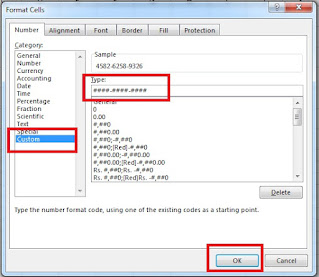
चरण-2 अब सिलेक्टेड नंबर पर माउस का राईट हैण्ड साइड क्लिक कर फॉर्मेट सेल बॉक्स को खोले.
चरण-3 इस बॉक्स में नंबर केटेगरी के अंतर्गत सबसे नीचे दिए गए Custom आप्शन पर क्लिक करे.
चरण-4 अब इसमें टाइप बॉक्स के अंतर्गत दिए गए General की जगह निम्न फॉर्मेट (#### – #### – ####) अंकित करे जैसा की स्क्रीन शॉट में दिखाया गया है.
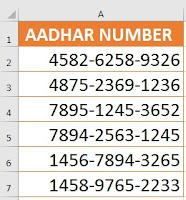
चरण-5 अब ओके बटन पर क्लिक करते है सेलेक्ट किये गए आधार नंबर नीचे दिखाए गए स्क्रीन शॉट के अनुसार सेपरेट हो जायेंगे.
How do you add text and formulas in the same cell in Excel
How to Convert Units in Excel, MM to M, CM, Feet and Inches in Hindi
How to add text to the beginning or end of all cells in Excel in Hindi
How to Add Comma After First Word in each Cells in Excel in Hindi
अंत में,
आशा है की पूरी पोस्ट पढने के बाद आपको एक्सेल में नंबर के एक सेट को डैश (-) की सहायता से अलग-अलग करना आ गया होगा.
Also Read
How to Add Mr and Mrs in Excel before Names in Hindi
How to Add and Subtract Number of Days in a Date Sets in Excel
How to Convert Decimal to Whole Number in Excel in Hindi
How to Convert Number to Words in Excel in Rupees Format in Hindi
How to Convert Number to Years and Months in Excel in Hindi
How to Find Last Monday of the Month Date in Excel in Hindi
How to Highlight Every Other Row in Excel in Hindi