Microsoft Excel में Number Formatting एक उपयोगी feature है, जिसकी मदद से हम numbers को अपनी आवश्यकता के अनुसार display कर सकते हैं। इस tutorial में आप सीखेंगे कि Excel में Asterisk (*) Format का उपयोग करके number को अलग-अलग styles में कैसे दिखाया जाता है।
Excel में Asterisk (*) Format क्या है?
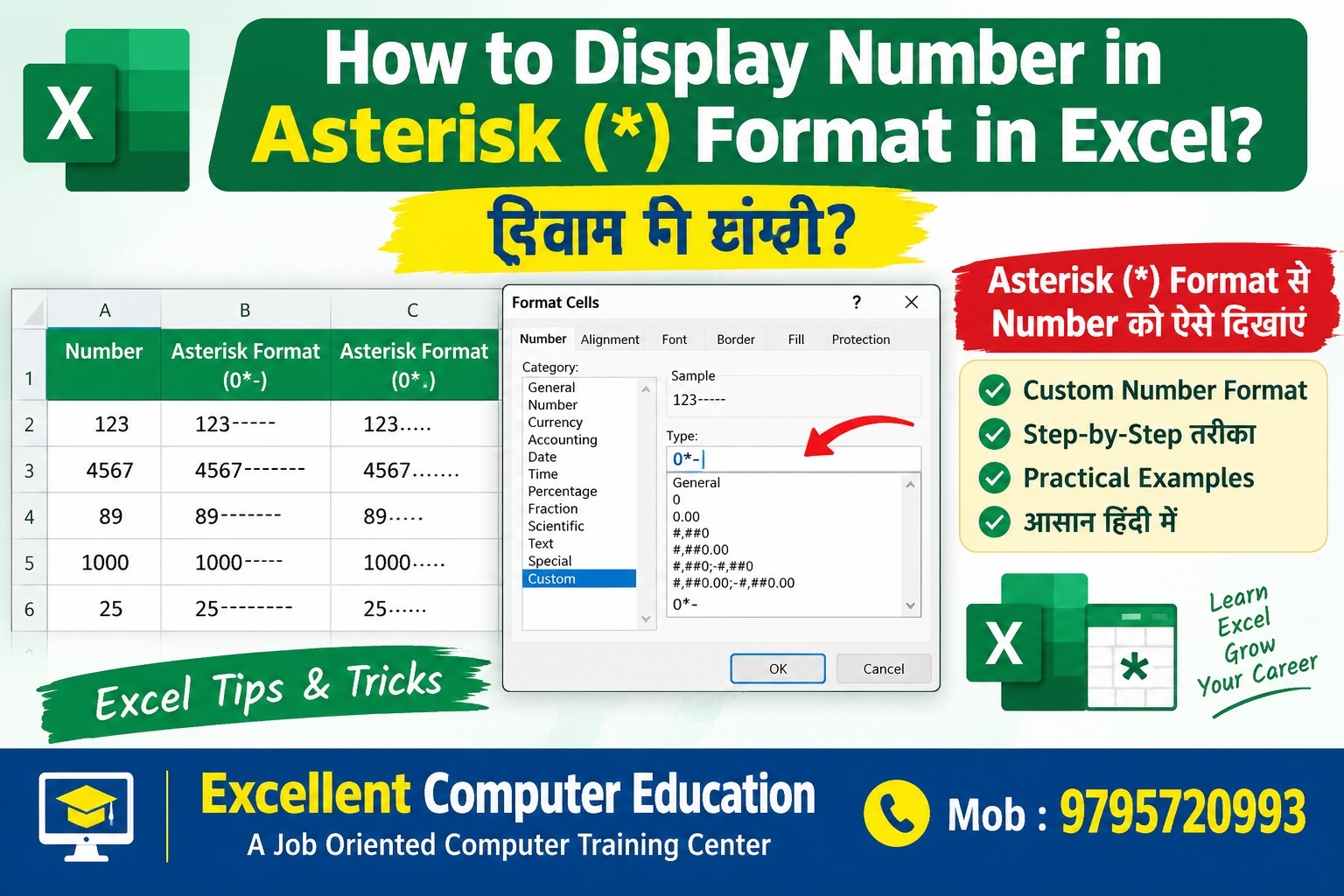
Excel के Custom Number Format में asterisk (*) का उपयोग उसके बाद आने वाले character को cell की उपलब्ध चौड़ाई के अनुसार repeat करने के लिए किया जाता है। उदाहरण के लिए, 0*- format लगाने पर number के बाद dash (-) कई बार दिखाई दे सकता है।
Method 1: Custom Number Format से Asterisk Format लगाएं
- सबसे पहले Excel में अपनी worksheet खोलें।
- उन cells को select करें जिनमें numbers मौजूद हैं।
- Keyboard से Ctrl + 1 दबाएं।
- Format Cells dialog box में Number tab खोलें।
- Category में Custom option select करें।
- Type box में नीचे दिया गया format code enter करें।
0*-- OK पर click करें।
- अब cell की चौड़ाई के अनुसार number के बाद dash repeat हो सकता है।
Excel Asterisk Format के Examples
| Format Code | उपयोग |
|---|---|
0*- | Number के बाद dash (-) repeat करना |
0*. | Number के बाद dot (.) repeat करना |
0* | Number के बाद spaces repeat करना |
*0 | यहाँ 0 से पहले repeat होने वाला character नहीं दिया गया है, इसलिए यह सामान्यतः अपेक्षित repeat effect नहीं देगा। |
Important: Format का exact appearance cell की width, number की value और Excel के formatting rules पर निर्भर करता है। यह display formatting है; इससे stored number नहीं बदलता।
Method 2: Number के साथ Asterisk Symbol दिखाना
यदि आपका उद्देश्य number के साथ केवल एक asterisk (*) दिखाना है, तो Custom Number Format में यह code इस्तेमाल कर सकते हैं:
0"*"उदाहरण: 125 को 125* के रूप में display किया जा सकता है। इससे मूल numeric value 125 ही रहती है।
Method 3: Number को Asterisks से Hide करना
यदि आप number की जगह केवल asterisks दिखाना चाहते हैं, तो Custom Number Format से यह तरीका आजमा सकते हैं:
- Cells select करें और Ctrl + 1 दबाएं।
- Number > Custom में जाएं।
- Type box में format code enter करें:
;;;यह format cell की displayed value को छिपाता है, लेकिन asterisks नहीं दिखाता। यह केवल display छिपाने का तरीका है, data security का नहीं। यदि आपको वास्तव में asterisks दिखाने हैं, तो अलग display column या formula की आवश्यकता हो सकती है।
Excel Number Formatting के फायदे
- Reports को साफ और professional बनाना।
- Numbers के आसपास decorative characters दिखाना।
- Invoice और worksheet में consistent formatting रखना।
- Stored number को बदले बिना उसका display बदलना।
Frequently Asked Questions (FAQs)
1. Excel में Asterisk (*) का क्या उपयोग है?
Custom Number Format में asterisk (*) के बाद आने वाले character को cell की उपलब्ध चौड़ाई में repeat करने के लिए उपयोग किया जाता है।
2. Excel में Custom Number Format कैसे खोलें?
Cells select करें और Ctrl + 1 दबाएं। इसके बाद Number tab में Custom category select करें।
3. क्या Number Format लगाने से original number बदल जाता है?
नहीं। Custom Number Format सामान्यतः केवल number का display बदलता है। Cell में stored numeric value वही रहती है।
4. क्या Asterisk Format data को सुरक्षित रखता है?
नहीं। Number formatting data को password-protect या encrypt नहीं करती। Sensitive data की सुरक्षा के लिए उचित security settings का उपयोग करें।
Conclusion
इस tutorial में आपने सीखा कि Excel में Custom Number Format के माध्यम से asterisk (*) का उपयोग कैसे किया जाता है। अलग-अलग format codes को अपनी worksheet में आजमाएं और आवश्यकता के अनुसार number का display customize करें।
Learn Computer Skills with Excellent Computer Education
Excellent Computer Education में Excel, Advanced Excel, Data Analytics, Power BI और अन्य job-oriented computer courses सीखें।
Excellent Computer Education
Goel Palace, Faizabad Road, Lucknow
Mobile: 9795720993
15 Most Important Excel Shortcut Key and its Proper use in Worksheet
How To Add 0 Before a Number in Excel in Hindi [ किसी भी number के आगे zero को कैसे लागाए]
How To Remove Comma after Text In Excel in Hindi
How to Enter Large Number in Excel Cell in Hindi
Who is the Father of MS Excel and its Components in Hindi – New!
जाने Advance Filter का Excel में क्या Use है?
जाने Excel मे Data Entry करते समय Freeze Panes का क्या Use होता है
Jobs Required Excel Static Formulas, Average, Averageif, Averageifs