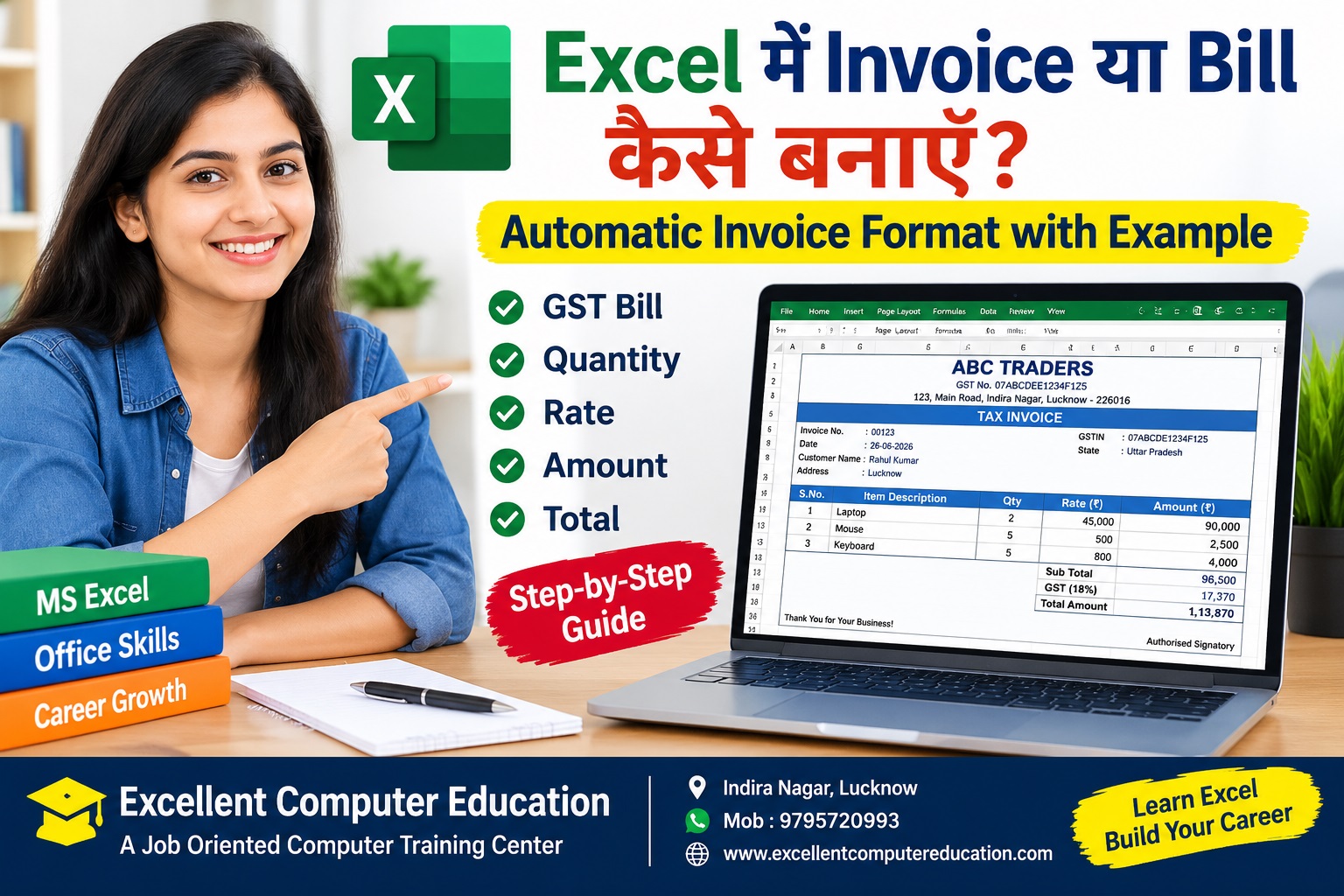
आजकल कई कंपनियों में MIS Executive का काम केवल Excel में डेटा भरना नहीं होता। इस भूमिका में sales report, attendance report, inventory report, employee performance, target achievement और daily या monthly business reports तैयार करना शामिल हो सकता है।
यदि आप किसी कंपनी में MIS Executive, Reporting Executive, Data Management Executive या Excel Operator के रूप में करियर बनाना चाहते हैं, तो आपको Excel के कुछ महत्वपूर्ण functions के साथ-साथ data cleaning, Pivot Table, charts और reporting की practical knowledge भी सीखनी चाहिए।
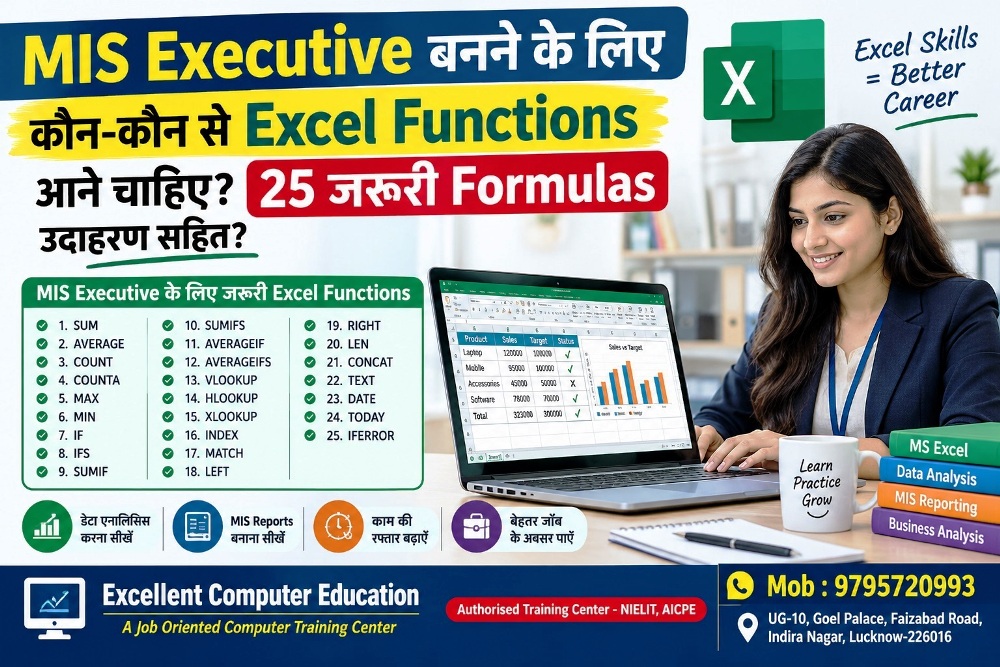
इस लेख में हम MIS Executive के लिए 25 जरूरी Excel Functions को आसान हिंदी में उदाहरण सहित समझेंगे।
MIS Executive का काम क्या होता है?
एक MIS Executive का मुख्य काम डेटा को व्यवस्थित करना, उसका विश्लेषण करना और management के लिए उपयोगी reports तैयार करना होता है।
आमतौर पर काम में ये जिम्मेदारियाँ शामिल हो सकती हैं:
Daily, weekly और monthly MIS reports बनाना।
Sales और target achievement report तैयार करना।
Employee attendance और performance data maintain करना।
बड़ी Excel files से आवश्यक जानकारी निकालना।
अलग-अलग sheets से data lookup करना।
Duplicate और गलत डेटा को पहचानना।
Pivot Table और charts की मदद से summary बनाना।
Management को समय पर accurate reports उपलब्ध कराना।
ध्यान दें कि जिम्मेदारियाँ कंपनी, industry और job role के अनुसार बदल सकती हैं।
MIS Executive के लिए सबसे जरूरी Excel Functions

1. SUM Function
काम: किसी range के numbers का total निकालना।
Formula:
=SUM(B2:B10)
2. SUMIF Function
काम: एक condition के आधार पर total निकालना।
Formula:
=SUMIF(A2:A100,"Lucknow",B2:B100)
3. SUMIFS Function
काम: एक से अधिक conditions के आधार पर total निकालना।
Formula:
=SUMIFS(D2:D100,A2:A100,"Lucknow",B2:B100,"Laptop")
4. COUNTIF Function
काम: किसी एक condition को पूरा करने वाली entries गिनना।
Formula:
=COUNTIF(C2:C100,"Present")
5. COUNTIFS Function
काम: कई conditions के आधार पर records count करना।
Formula:
=COUNTIFS(A2:A100,"Sales",B2:B100,"Present")Example: Sales department में Present employees की संख्या निकालना।
Logical Functions: IF, AND, OR और IFERROR
ये functions office reports में conditions, targets, status और errors को handle करने में मदद करते हैं।
6. IF Function
काम: Condition के आधार पर अलग-अलग result देना।
उदाहरण: यदि employee का target achievement 100% या उससे अधिक है, तो Achieved दिखाएँ।
=IF(C2>=100%,"Achieved","Pending")7. AND Function
काम: सभी conditions TRUE होने पर TRUE देता है।
=IF(AND(B2>=100,C2="Present"),"Eligible","Not Eligible")8. OR Function
काम: कई conditions में से कोई एक TRUE होने पर TRUE देता है।
=IF(OR(B2="Urgent",C2="High"),"Priority","Normal")9. IFERROR Function
काम: Formula में error आने पर वैकल्पिक result दिखाना।
=IFERROR(A2/B2,0)10. IFS Function
काम: कई conditions के आधार पर अलग-अलग results देना।
=IFS(B2>=90,"Excellent",B2>=75,"Good",B2>=50,"Average",TRUE,"Needs Improvement")Lookup Functions: VLOOKUP, XLOOKUP और INDEX-MATCH
MIS Executive को अक्सर एक sheet से दूसरी sheet में employee, product, customer या sales की जानकारी निकालनी होती है।

11. VLOOKUP Function
काम: Table के पहले column में value खोजकर दूसरे column से result निकालना।
=VLOOKUP(A2,$F$2:$H$100,3,FALSE)
12. XLOOKUP Function
काम: किसी value को खोजकर संबंधित result लौटाना। यह lookup को left या right दोनों दिशाओं में कर सकता है।
=XLOOKUP(A2,F2:F100,H2:H100,"Not Found")
13. INDEX और MATCH
काम: किसी lookup value के आधार पर दूसरे range से data निकालना।
=INDEX(C2:C100,MATCH(E2,A2:A100,0))Example: E2 में Employee ID है, A column में IDs और C column में employee names हैं। Formula संबंधित नाम लौटाएगा।
Data Cleaning के लिए जरूरी Functions
गलत spelling, extra spaces, inconsistent names और duplicate records reporting की accuracy को प्रभावित कर सकते हैं।
14. TRIM Function
Text के शुरू, अंत और शब्दों के बीच अतिरिक्त spaces हटाने में मदद करता है।
=TRIM(A2)15. LEFT Function
Text के बाईं ओर से characters निकालता है।
=LEFT(A2,3)LKO1025 है, तो result LKO होगा।16. RIGHT Function
Text के दाईं ओर से characters निकालता है।
=RIGHT(A2,4)LKO1025 का result 1025 होगा।
17. MID Function
Text के बीच से characters निकालता है।
=MID(A2,4,4)18. LEN Function
किसी text में characters की संख्या गिनता है।
=LEN(A2)19. CONCAT या TEXTJOIN
कई text values को एक साथ जोड़ने के लिए।
=CONCAT(A2," ",B2)=TEXTJOIN(" ",TRUE,A2,B2)Date और Reporting Functions
MIS reports में महीने के हिसाब से sales, joining dates, payment status और pending days की गणना करनी पड़ सकती है।
20. TODAY Function
आज की तारीख दिखाता है।
=TODAY()21. EOMONTH Function
किसी तारीख से संबंधित महीने का अंतिम दिन निकालता है।
=EOMONTH(A2,0)22. NETWORKDAYS Function
दो dates के बीच working days गिनता है। छुट्टियों को अलग range में देकर exclude किया जा सकता है।
=NETWORKDAYS(A2,B2,$H$2:$H$20)23. TEXT Function
Number या date को चुने हुए display format में text के रूप में दिखाता है।
=TEXT(A2,"mmm-yyyy")Sep-2026 हो सकता है।ध्यान दें: TEXT का result text होता है। ऐसे results को आगे numeric calculations में इस्तेमाल करने से पहले सावधानी रखें।
Dynamic Reports के लिए Modern Excel Functions
24. FILTER Function
Condition के आधार पर records की सूची निकालता है।
=FILTER(A2:D100,C2:C100="Lucknow","No Data")25. UNIQUE Function
किसी range से unique values निकालता है।
=UNIQUE(B2:B100)Frequently Asked Questions (FAQs)
Q1. MIS Executive बनने के लिए कौन-सा Excel सीखना चाहिए?
Excel formulas, lookup functions, Pivot Table, Sort & Filter, Conditional Formatting, Data Validation और report formatting से शुरुआत करें। इसके बाद dashboards और Power Query की practice करें।
Q2. क्या MIS Executive बनने के लिए Advanced Excel जरूरी है?
कई MIS और reporting jobs में intermediate से advanced Excel skills की जरूरत होती है। आवश्यक skills कंपनी और job description के अनुसार अलग-अलग हो सकती हैं।
Q3. MIS Executive के लिए कौन-से Excel formulas सबसे ज्यादा उपयोगी हैं?
SUMIFS, COUNTIFS, IF, IFERROR, VLOOKUP/XLOOKUP, INDEX-MATCH, TEXT, date functions और text functions नियमित reporting tasks में उपयोगी हैं।
Q4. क्या केवल Excel सीखकर MIS Executive की नौकरी मिल सकती है?
Excel एक महत्वपूर्ण skill है, लेकिन नौकरी के लिए communication, data accuracy, reporting logic, business understanding और कभी-कभी SQL या Power BI की जानकारी भी मांगी जा सकती है। चयन employer की requirements पर निर्भर करता है।
Q5. MIS Executive की तैयारी के लिए कौन-से projects बनाने चाहिए?
Sales MIS Report, Attendance Report, Inventory Report, Employee Performance Report और Excel Dashboard जैसे projects से practical skills प्रदर्शित की जा सकती हैं।
Q6. क्या Excel में AI का उपयोग किया जा सकता है?
हाँ। उपलब्ध AI tools से formula समझने, formula drafts बनाने, data-cleaning ideas लेने और report structure तैयार करने में मदद मिल सकती है। लेकिन formulas और business results को अपने data पर verify करना चाहिए।
निष्कर्ष
MIS Executive बनने की तैयारी के लिए Excel के formulas को याद करना ही पर्याप्त नहीं है। आपको यह समझना चाहिए कि किस business problem के लिए कौन-सा function इस्तेमाल करना है और उससे सही, readable तथा accurate report कैसे बनानी है।
Excellent Computer Education में Advanced Excel सीखें
अगर आप MIS Executive, Data Entry Operator, Reporting Executive या Office Assistant के रूप में करियर की तैयारी कर रहे हैं, तो Excel को केवल theory से नहीं, बल्कि practical projects के माध्यम से सीखना उपयोगी होगा।
Excellent Computer Education में अपने training goals के अनुसार Advanced Excel, MIS Reporting, Excel Formulas, Pivot Tables और Dashboard Projects की course details के लिए संपर्क कर सकते हैं।
Excellent Computer Education
A Job Oriented Computer Training Center
UG-10, Goel Palace, Faizabad Road, Indira Nagar, Lucknow – 226016
Call / WhatsApp: 9795720993
Website: excellentcomputereducation.com