MS Excel Window Components in Hindi: Microsoft Excel एक spreadsheet software है, जिसका उपयोग data entry, calculation, tables, reports, charts और data analysis के लिए किया जाता है। Excel को अच्छी तरह सीखने के लिए उसकी Window के सभी Parts और उनके functions जानना जरूरी है।
इस Blog में आप सीखेंगे:- MS Excel Window के सभी प्रमुख Parts के नाम।
- Title Bar, Ribbon, Formula Bar और Name Box का उपयोग।
- Rows, Columns, Cells और Worksheet क्या हैं?
- Sheet Tab, Status Bar, Zoom Slider और अन्य Components।
1. MS Excel Window क्या है?
MS Excel Window वह working area है जिसमें user spreadsheet बनाता है, data enter करता है, formulas लगाता है और reports तैयार करता है। Excel के अलग-अलग versions में इसका interface थोड़ा अलग हो सकता है, लेकिन इसके मुख्य components लगभग समान रहते हैं।
2. MS Excel Window के मुख्य Parts और उनके कार्य
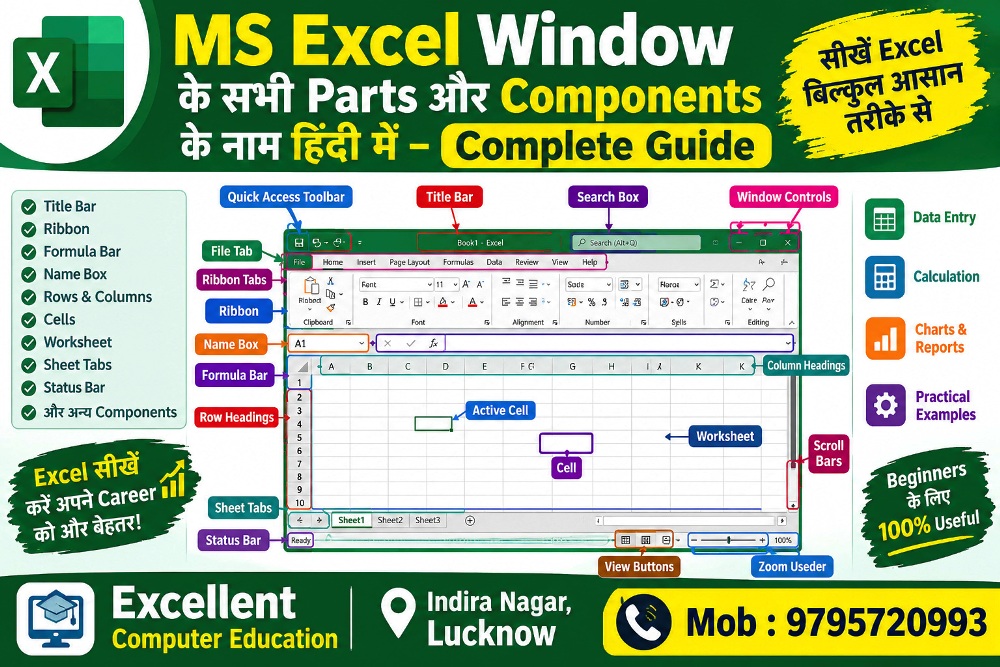
| क्रम | Component Name | हिंदी में नाम / उपयोग |
|---|
| 1 | Title Bar | Workbook का नाम दिखाता है। |
| 2 | Quick Access Toolbar | Save, Undo और Redo जैसे commands के shortcuts। |
| 3 | File Tab | New, Open, Save, Print और Export के विकल्प। |
| 4 | Ribbon | Excel के tabs और command buttons का क्षेत्र। |
| 5 | Ribbon Tabs | Home, Insert, Page Layout, Formulas, Data, Review, View आदि। |
| 6 | Name Box | Selected cell का address दिखाता है। |
| 7 | Formula Bar | Cell का data या formula दिखाता और edit करता है। |
| 8 | Column Headings | A, B, C जैसे column letters। |
| 9 | Row Headings | 1, 2, 3 जैसे row numbers। |
| 10 | Active Cell | वह cell जिसमें अभी selection है। |
| 11 | Cell | Row और Column के मिलने से बनने वाला box। |
| 12 | Worksheet | Data enter करने वाली spreadsheet sheet। |
| 13 | Sheet Tabs | अलग-अलग worksheets के बीच जाने के लिए। |
| 14 | Scroll Bars | Worksheet में ऊपर-नीचे या दाएं-बाएं जाने के लिए। |
| 15 | Status Bar | Selection और workbook status की जानकारी। |
| 16 | View Buttons | Worksheet का view बदलने के लिए। |
| 17 | Zoom Slider | Worksheet को बड़ा या छोटा देखने के लिए। |
| 18 | Window Controls | Minimize, Maximize/Restore और Close। |
| 19 | Search Box | Commands और features खोजने के लिए, यदि उपलब्ध हो। |
3. Title Bar क्या है?
Title Bar Excel Window के ऊपरी भाग में होता है। इसमें आम तौर पर workbook का नाम दिखाई देता है। नई workbook का नाम अक्सर Book1 होता है, जब तक उसे किसी दूसरे नाम से save न किया जाए।
Example: अगर workbook का नाम StudentData.xlsx है, तो Title Bar में यही नाम दिखाई दे सकता है।
4. Quick Access Toolbar
Quick Access Toolbar में frequently used commands रखे जा सकते हैं। Version और settings के अनुसार इसकी position बदल सकती है।
- Save: Workbook को save करना।
- Undo: पिछली action को वापस लेना।
- Redo: Undo की गई action को दोबारा लागू करना।
5. File Tab और Ribbon
File Tab
File Tab में workbook से जुड़े management options मिलते हैं, जैसे New, Open, Save As, Print, Share और Export। उपलब्ध विकल्प Excel version और account settings पर निर्भर कर सकते हैं।
Ribbon
Ribbon में अलग-अलग tabs और उनके command groups होते हैं। उदाहरण के लिए Home tab में Font, Alignment, Number और Editing जैसे groups मिलते हैं।
| Ribbon Tab | मुख्य उपयोग |
|---|
| Home | Formatting, Copy, Paste और Alignment। |
| Insert | Tables, Pictures, Charts और अन्य objects। |
| Page Layout | Margins, Orientation, Size और Print Layout। |
| Formulas | Functions, Formula Auditing और Calculation। |
| Data | Sort, Filter, Data Validation और Get Data। |
| Review | Comments, Notes और Proofing tools। |
| View | Workbook views, Gridlines, Freeze Panes और Zoom। |
6. Name Box और Formula Bar
Name Box
Name Box, Formula Bar के बाईं ओर होता है। यह selected cell का address दिखाता है। आप इसमें cell address लिखकर सीधे उस cell पर जा सकते हैं।
Example: Name Box में D5 लिखकर Enter दबाएं। Excel आपको D5 cell पर ले जाएगा।
Formula Bar
Formula Bar में selected cell का content या formula दिखाई देता है। इसका उपयोग cell के data या formula को देखने और edit करने के लिए किया जाता है।
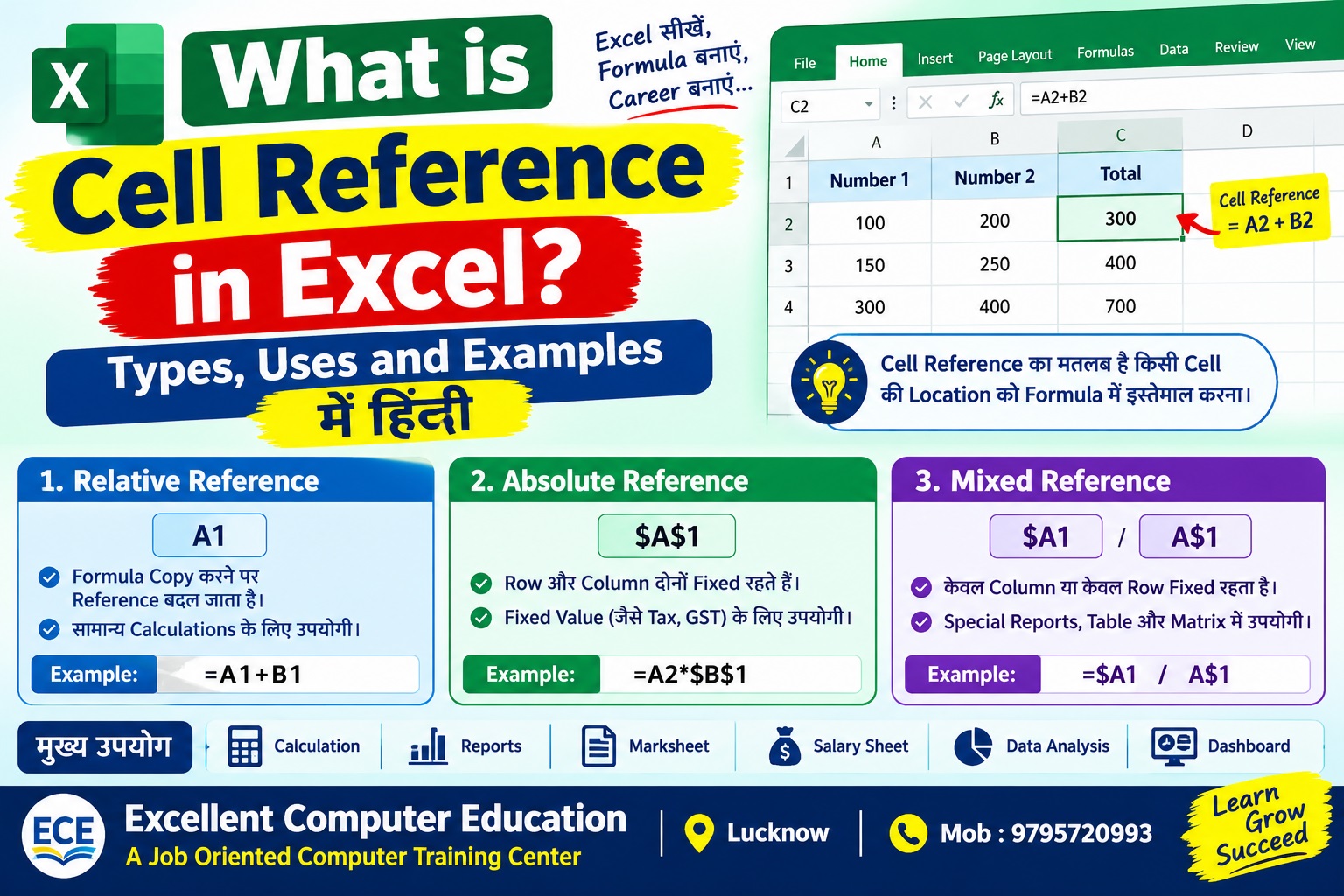
Example: यदि C2 में =A2+B2 formula है, तो C2 select करने पर Formula Bar में यह formula दिखाई देगा।
7. Rows, Columns और Cells
Rows (पंक्तियां)
Worksheet में horizontal lines को Rows कहते हैं। इन्हें 1, 2, 3, 4 आदि numbers से पहचाना जाता है।
Columns (स्तंभ)
Vertical sections को Columns कहते हैं। इन्हें A, B, C, D आदि letters से पहचाना जाता है।
Cell (सेल)
Row और Column के intersection से Cell बनता है। प्रत्येक cell का एक unique address होता है।
Example: Column B और Row 4 के intersection पर बने cell का address B4 है।
Active Cell
वह cell जो वर्तमान में selected होता है, Active Cell कहलाता है। इसमें data type करने या formula लगाने के लिए आप keyboard से लिखना शुरू कर सकते हैं।
8. Worksheet और Workbook में अंतर
- Workbook: पूरी Excel file, जिसमें एक या अधिक worksheets हो सकती हैं।
- Worksheet: Workbook के अंदर मौजूद individual spreadsheet।
- Sheet Tab: Worksheet का नाम दिखाता है और sheets के बीच switch करने देता है।
Example: एक workbook में January, February और March नाम की तीन worksheets हो सकती हैं।
9. Scroll Bars, Status Bar और Zoom Slider
Scroll Bars
Vertical Scroll Bar से worksheet में ऊपर-नीचे और Horizontal Scroll Bar से दाएं-बाएं move किया जा सकता है।
Status Bar
Status Bar, Excel Window के नीचे होता है। इसमें Ready या अन्य status indicators, selected cells की Sum, Average और Count जैसी जानकारी (जहां लागू हो), तथा view controls दिख सकते हैं।
Zoom Slider
Zoom Slider से worksheet को बड़ा या छोटा करके देखा जा सकता है। इससे cell का वास्तविक size या print size नहीं बदलता, केवल screen पर दिखाई देने वाला zoom बदलता है।
10. MS Excel के Parts का Practical Example
मान लीजिए आप students के marks की worksheet बना रहे हैं:
| Name | English | Maths | Total |
|---|
| Rahul | 70 | 80 | 150 |
| Priya | 85 | 90 | 175 |
| Aman | 60 | 75 | 135 |
इस example में:
- Column A में Name है।
- Row 2 में Rahul का data है।
- Cell D2 में Rahul का Total है।
- अगर D2 में
=B2+C2 formula लगाएं, तो result 150 आएगा। - Formula Bar में D2 का formula देखा जा सकता है।
Practice Tip: Excel खोलें और एक नई workbook में student marks की table बनाएं। Name Box, Formula Bar, Ribbon और Sheet Tabs को खुद इस्तेमाल करके देखें।
11. MS Excel Window के Parts से जुड़े FAQs
1. MS Excel Window के मुख्य Parts कौन-कौन से हैं?
मुख्य parts में Title Bar, Quick Access Toolbar, File Tab, Ribbon, Name Box, Formula Bar, Rows, Columns, Cells, Worksheet, Sheet Tabs, Scroll Bars और Status Bar शामिल हैं।
2. Name Box का क्या काम है?
Name Box selected cell का address दिखाता है। इसमें कोई cell address लिखकर उस cell पर सीधे पहुंच सकते हैं।
3. Formula Bar का उपयोग क्या है?
Formula Bar selected cell का data या formula देखने और edit करने के लिए उपयोग होता है।
4. Workbook और Worksheet में क्या अंतर है?
Workbook पूरी Excel file होती है, जबकि Worksheet उस file के अंदर मौजूद spreadsheet होती है।
5. Excel में Row और Column क्या हैं?
Row horizontal होती है और numbers से पहचानी जाती है। Column vertical होता है और letters से पहचाना जाता है।
6. Excel में Cell Address क्या होता है?
Column letter और Row number से मिलकर cell address बनता है। जैसे A1, B5 और D10।
Conclusion (निष्कर्ष)
MS Excel Window के Parts और Components को समझना Excel सीखने का पहला महत्वपूर्ण कदम है। Title Bar, Ribbon, Name Box, Formula Bar, Rows, Columns और Cells की जानकारी से आप data entry, calculations, formatting और reports आसानी से बना सकते हैं। Regular practice करके आप Excel में अपनी skills बेहतर कर सकते हैं।
Computer Course में Admission Open
MS Excel, Advanced Excel और अन्य computer courses सीखने के लिए संपर्क करें।
Excellent Computer Education
Indira Nagar, Lucknow
Call Now: 9795720993 WhatsApp EnquirySuggested Next Topic: MS Excel के सभी Tabs और उनके Tools का उपयोग हिंदी में।