
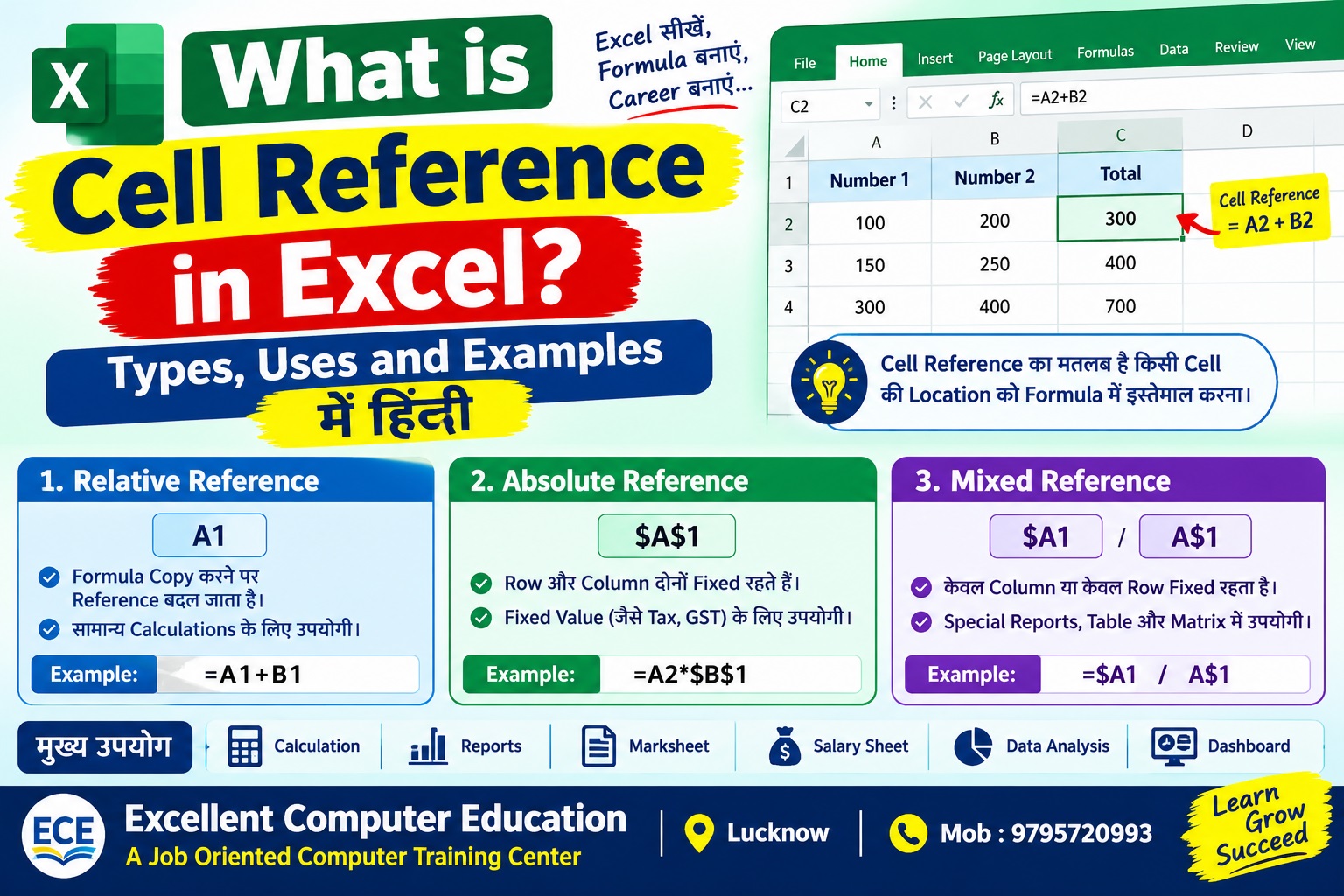
Microsoft Excel में Data Entry, Calculation, Salary Sheet, Marksheet और Reports बनाते समय Formulas का उपयोग किया जाता है। इन Formulas को सही तरीके से काम कराने में Cell Reference की महत्वपूर्ण भूमिका होती है।
अगर आप Excel सीख रहे हैं या Advanced Excel, MIS Reporting और Data Analytics में अपना करियर बनाना चाहते हैं, तो Cell Reference को समझना बहुत जरूरी है।
इस ब्लॉग में हम जानेंगे कि Excel में Cell Reference क्या है, इसके कितने प्रकार होते हैं और इनका उपयोग Practical Examples के साथ कैसे किया जाता है।
Excel में Cell Reference क्या है? (What is Cell Reference in Excel?)
Excel Worksheet में प्रत्येक Cell की एक पहचान होती है, जिसे Cell Address कहते हैं। इसमें Column का Letter और Row का Number शामिल होता है।
उदाहरण के लिए:
- A1 = Column A और Row 1 का Cell
- B5 = Column B और Row 5 का Cell
- C10 = Column C और Row 10 का Cell
जब हम किसी Formula में किसी Cell की Location का उपयोग करते हैं, तो उसे Cell Reference कहा जाता है।
उदाहरण:
=A1+B1
इस Formula में Excel, Cell A1 और B1 की Values को जोड़ता है।
यदि A1 में 100 और B1 में 200 है, तो Result 300 आएगा।
इस प्रकार Cell Reference की सहायता से Excel दूसरे Cells की Values का उपयोग करके Calculation करता है।
Cell Reference का उपयोग क्यों किया जाता है?
Excel में Cell Reference का इस्तेमाल कई प्रकार के कार्यों में किया जाता है:
- दो या अधिक Numbers को जोड़ने के लिए।
- Total, Average और Percentage निकालने के लिए।
- Marksheet और Salary Sheet बनाने के लिए।
- GST और Discount की Calculation करने के लिए।
- एक ही Formula को कई Rows या Columns में Copy करने के लिए।
- MIS Reports और Interactive Dashboards बनाने के लिए।
Cell Reference का सबसे बड़ा फायदा यह है कि Source Data बदलने पर उससे जुड़े Formulas के Results भी सामान्यतः अपने आप Update हो जाते हैं।
Advanced Excel Training Institute in Indira Nagar Lucknow
Types of Cell Reference in Excel
Excel में Cell Reference मुख्य रूप से तीन प्रकार के होते हैं:
- Relative Cell Reference
- Absolute Cell Reference
- Mixed Cell Reference
आइए, प्रत्येक प्रकार को उदाहरण सहित समझते हैं।
Relative Cell Reference in Excel
Relative Reference Excel का सामान्य और सबसे अधिक उपयोग किया जाने वाला Cell Reference है।
इसमें जब आप Formula को किसी दूसरे Cell में Copy करते हैं, तो Formula में Cell References अपनी नई Position के अनुसार बदल जाते हैं।
उदाहरण के लिए, आपके पास निम्न Data है:
| A | B | C (Total) |
| 100 | 200 | 300 |
| 150 | 250 | 400 |
| 300 | 400 | 700 |
Cell C2 में Formula लगाएं:
=A2+B2
अब इस Formula को C3 और C4 में Copy करें।
Excel इसे अपने आप इस प्रकार बदल देगा:
- C2: =A2+B2
- C3: =A3+B3
- C4: =A4+B4
Practical Use: Marksheet, Daily Sales Report, Student Fee Sheet और सामान्य Calculations में Relative Reference बहुत उपयोगी है।
Download 50 Advance Excel Sheet Practical Assignment …
Absolute Cell Reference in Excel
Absolute Reference में Row और Column दोनों को स्थिर रखा जाता है। Formula को किसी दूसरे Cell में Copy करने पर Reference नहीं बदलता।
Absolute Reference बनाने के लिए Dollar Sign ($) का उपयोग किया जाता है।
उदाहरण:
=$A$1
इस Reference में Column A और Row 1 दोनों Fixed हैं।
Practical Example: GST Calculation
मान लीजिए, Cell B1 में GST Rate 18% है और Column A में Product Prices दी गई हैं।
| A (Price) | B (GST Rate) | C (GST Amount) |
| 1000 | 18% | 180 |
| 2000 | 18% | 360 |
| 5000 | 18% | 900 |
Cell C2 में Formula लगाएं:
=A2*$B$1
अब इसे नीचे Copy करें।
Formula इस प्रकार काम करेगा:
- C2: =A2*$B$1
- C3: =A3*$B$1
- C4: =A4*$B$1
यहाँ A2 बदलकर A3 और A4 होगा, लेकिन $B$1 स्थिर रहेगा।
Practical Use: Fixed GST Rate, Commission Rate, Discount Rate, Tax Rate और किसी स्थिर Percentage के आधार पर Calculation करने में Absolute Reference उपयोगी है।
Mixed Cell Reference in Excel
Mixed Reference में Row या Column में से केवल एक को Fixed किया जाता है।
इसके दो प्रकार होते हैं:
- $A1 — Column A Fixed रहता है, Row बदल सकती है।
- A$1 — Row 1 Fixed रहती है, Column बदल सकता है।
Example 1: $A1
यदि Formula को नीचे Copy किया जाता है, तो Row Number बदल सकता है, लेकिन Column A स्थिर रहता है।
उदाहरण:
- =$A1*2
- =$A2*2
- =$A3*2
Example 2: A$1
यदि Formula को दाईं ओर Copy किया जाता है, तो Column बदल सकता है, लेकिन Row 1 स्थिर रहती है।
उदाहरण:
- =A$1*2
- =B$1*2
- =C$1*2
Practical Use
Mixed Reference का उपयोग Multiplication Table, Two-Way Data Tables, Commission Matrix और ऐसी Reports में किया जाता है जहाँ Row या Column में से किसी एक को स्थिर रखना हो।
How to Use Paste Special and Go To Special in Excel i?
Relative, Absolute और Mixed Reference में अंतर
| Reference Type | Example | क्या Fixed रहता है? |
| Relative | A1 | कुछ भी Fixed नहीं |
| Absolute | $A$1 | Row और Column दोनों |
| Mixed | $A1 | केवल Column |
| Mixed | A$1 | केवल Row |
इस अंतर को याद रखने का आसान तरीका है: Dollar Sign ($) जिस हिस्से के पहले लगा होता है, वह हिस्सा Copy करने पर Fixed रहता है।
Excel में Dollar Sign ($) कैसे लगाएं?
Cell Reference को Absolute या Mixed बनाने के लिए आप Formula Bar में Reference के आगे Dollar Sign लगा सकते हैं।
उदाहरण:
=A1*B1
इसे बदलकर:
=$A$1*B1
कर सकते हैं।
एक आसान तरीका Keyboard Shortcut है:
- Formula में उस Cell Reference पर Cursor रखें जिसे बदलना है।
- Keyboard से F4 दबाएं।
- Excel Reference को इन रूपों में बदल सकता है:
- $A$1
- A$1
- $A1
- A1
कुछ Laptops पर Fn + F4 दबाने की आवश्यकता हो सकती है। यह आपके Keyboard Settings पर निर्भर करता है।
Practical Example: Student Marksheet में Cell Reference
मान लीजिए, आपको विद्यार्थियों के Total Marks और Percentage निकालने हैं।
| Student Name | English | Hindi | Computer | Total |
| Rahul | 75 | 80 | 90 | 245 |
| Priya | 85 | 90 | 95 | 270 |
यदि Marks B2, C2 और D2 में हैं, तो Total के लिए E2 में Formula लगाएं:
=SUM(B2:D2)
Percentage निकालने के लिए, यदि प्रत्येक Subject के Maximum Marks 100 हैं और तीन Subjects हैं:
=E2/300*100
अब आप Formulas को नीचे Copy करके अन्य विद्यार्थियों के Results भी निकाल सकते हैं। यहाँ Relative Reference का उपयोग हो रहा है।
Frequently Asked Questions (FAQs)
1. What is Cell Reference in Excel?
Excel में Cell Reference किसी Cell की Location को दर्शाता है, जैसे A1 या B5। इसका उपयोग Formulas में Cell Values को Refer करने के लिए किया जाता है।
2. Excel में Cell Reference कितने प्रकार के होते हैं?
मुख्य रूप से तीन प्रकार होते हैं: Relative, Absolute और Mixed Cell Reference।
3. Absolute Cell Reference का Symbol क्या है?
Absolute Reference में Dollar Sign ($) का उपयोग होता है। उदाहरण: $A$1।
4. Relative और Absolute Reference में क्या अंतर है?
Relative Reference Formula Copy करने पर अपनी Position के अनुसार बदलता है, जबकि Absolute Reference में Row और Column दोनों Fixed रहते हैं।
5. Excel में F4 Key का क्या उपयोग है?
Formula Edit करते समय F4 Key Cell Reference को Relative, Absolute और Mixed रूपों में बदलने में मदद करती है।
6. Mixed Cell Reference क्या है?
Mixed Reference में Row या Column में से केवल एक Fixed होता है। उदाहरण: $A1 या A$1।
7. Excel में Cell Reference सीखना क्यों जरूरी है?
यह Formulas को सही तरीके से Copy करने, Calculations को Automatic बनाने और बड़ी Worksheets में समय बचाने के लिए जरूरी है।
निष्कर्ष (Conclusion)
Excel में Cell Reference Formulas का एक महत्वपूर्ण हिस्सा है। Relative Reference सामान्य Calculations में, Absolute Reference Fixed Values के साथ और Mixed Reference Row या Column को स्थिर रखने के लिए उपयोग किया जाता है।
इन तीनों References का नियमित अभ्यास करने से आप Marksheet, Salary Sheet, GST Calculation, MIS Reporting और Data Analysis जैसे कार्य अधिक आसानी से कर सकते हैं।
यदि आप Excel और Advanced Excel को Practical तरीके से सीखना चाहते हैं, तो अलग-अलग Data Sets पर इन Formulas का अभ्यास करें।
Excellent Computer Education – Lucknow
एक Job Oriented Computer Training Center, जहाँ विद्यार्थी Computer Applications, Advanced Excel और Data Analytics जैसे विषयों की Practical Training सीख सकते हैं।
वेबसाइट: https://excellentcomputereducation.com
संपर्क: 9795720993
Excel सीखें, Practical Skills बढ़ाएं और अपने Career के लिए बेहतर तैयारी करें।