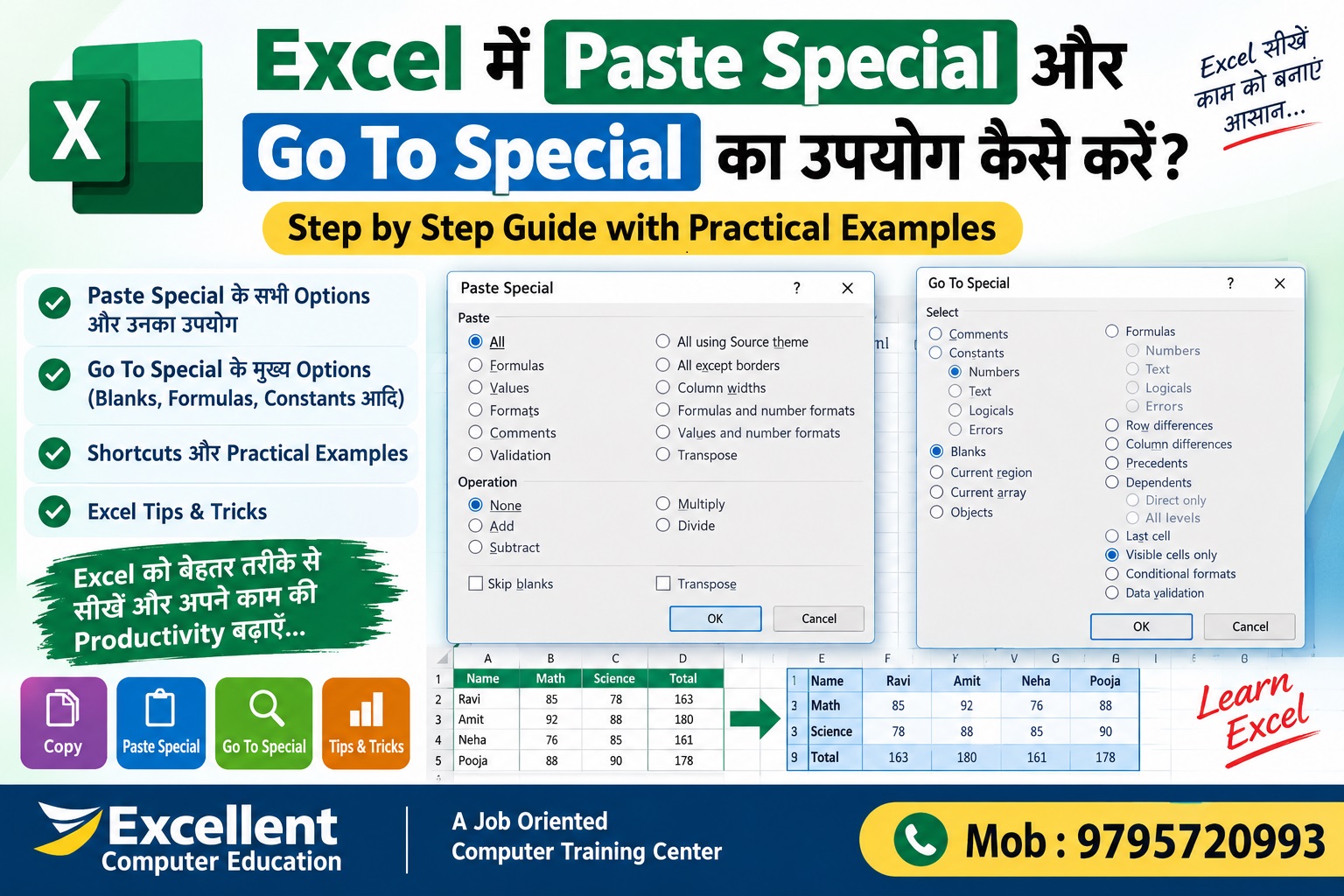
What Is Paste Special in Excel?
Copy और Paste के बारे मे तो आपने बहुत सुना और जाना होगा। आज की इस पोस्ट मे हम Excel के Very Useful Function Paste Special and Go to Special के बारे मे जानेंगे।
Paste Special
Paste Special option भी copy करने के बाद ही enable होता है लेकिन Paste Special के द्वारा हम copy किए हुए Data को ज्यो का त्यो न Paste कर अपनी आवश्यकतानुसार Format मे Paste कर सकते है Paste Special की Shortcut Key Ctrl+Alt+V, or Alt+E+S+V तो आइये इसको समझते है.
1. Paste All– इस ऑप्शन के द्वारा हम Copy किए हुए Data को ज्यो का त्यो Paste कर सकते है।
2. Paste Formulas – इस ऑप्शन के द्वारा हम Copy किए हुए Data मे Use किए गए Formulas को ही Paste कर सकते है।
3. Paste Value – इस ऑप्शन के द्वारा हम Copy किए हुए Data मे Use किए गए Formulas को Formulas के रूप मे न Paste कर Values के रूप मे Paste करते है।
4. Paste Formats – इस ऑप्शन के द्वारा हम Copy किए हुए Data मे Use की गई Formatting को केवल Paste कर सकते है इसमे Formulas और Values Paste नहीं होती है।
5. Paste Comments – इस ऑप्शन के द्वारा हम Copy किए हुए Data मे Use किए गए Comments को Paste करते है।
6. Paste Validation– इस ऑप्शन के द्वारा हम Copy किए हुए Data मे Use किए हुए Validation Rules को Paste करने का कार्य करते है।
7. Paste All Except Border – इस ऑप्शन के द्वारा हम Copy किए हुए Data मे Use किए हुए Borders को Paste करने का कार्य करते है।
8. Paste Column Width – इस ऑप्शन के द्वारा हम Copy किए हुए Data मे Use की गई Columns की Width को Paste करने का कार्य करते है।
9. Paste Formulas and Number Values – इस ऑप्शन के द्वारा हम Copy किए हुए Data मे Use किए हुए Formulas and Number Values को Paste करने का कार्य करते है।
10. Paste Values and Number Formats – इस ऑप्शन के द्वारा हम Copy किए हुए Data मे Use किए जा रहे Values and Number Formats को Paste करने का कार्य करते है।
Paste Operations
1. Paste Sum, Subtract, Multiple and Divide – इस ऑप्शन के द्वारा हम Copy किए हुए Data मे Use किए जा रहे Values मे Sum, Subtract, Multiple and Divide को Paste कर उसकी Data की values को change कर सकते है।
2. Paste Skip Blanks – इस option का द्वारा Paste करने पर Blank Cells Skip हो जाती है अर्थात Blank Cells मे कोई भी Formats use नहीं होता है।
3. Paste Transpose – इस option के द्वारा Vertical रूप मे बनाए Data को Horizontal रूप मे तथा Horizontal रूप मे बनाए गए Data को Vertical रूप मे Paste कर सकते है।
Go To Special
Go To Special Excel Application मे use होने वाला अति महत्वपूर्ण option है जैसा की नाम से प्रतीत हो जरा है Go To अर्थात जाना तो इसे आइए समझते है :-
1. Go to Comments – इस option के द्वारा हम Data मे Use किए जाने वाले Comments पर आसानी से जा सकते है।
2. Go to Constants– इस option के द्वारा हम Data मे Use किए जाने वाले Constants पर आसानी से जा सकते है।
3. Go to Formulas(Number, Text, Logicals and Errors) – इस option के द्वारा हम Data मे Use किए जाने वाले Formulas पर आसानी से जा सकते है।
4. Go to Blanks – इस option के द्वारा हम Select Data मे Use हो रही Blanks Cells पर आसानी से जा सकते है।
5. Go to Row, Column Differences – इस option के द्वारा हम Data मे Use हो रही Different Row, Columns पर आसानी से जा सकते है।
6. Go to Precedents/Dependents – इस option के द्वारा हम Data मे Use हो रही Precedents/Dependents Cells पर आसानी से जा सकते है।
7. Go to Last/Visible Cells– इस option के द्वारा हम Spreadsheet की Last /Visible Cells पर आसानी से जा सकते है।
8. Go to Conditional Formats – इस option के द्वारा हम Data मे Use हो रही Conditional Formatting पर आसानी से जा सकते है।
9. Go to Validation – इस option के द्वारा हम Data मे Use हो रही Validation Rules पर आसानी से जा सकते है।
Frequently Asked Questions (FAQs)
1. What is Paste Special in Excel?
Paste Special Excel का फीचर है जो कॉपी किए गए डेटा की Values, Formulas, Formats या अन्य उपलब्ध हिस्सों को अलग-अलग पेस्ट करने की सुविधा देता है।
2. What is the shortcut key for Paste Special in Excel?
Windows के कई Excel संस्करणों में Paste Special डायलॉग खोलने के लिए Ctrl + Alt + V का उपयोग किया जाता है।
3. What is Go To Special in Excel?
Go To Special का उपयोग Blank Cells, Formula Cells, Constants और अन्य विशेष प्रकार के सेल को Select करने के लिए किया जाता है।
4. What is the shortcut for Go To Special?
Ctrl + G या F5 से Go To डायलॉग खोलें, फिर Special चुनें।
5. How do I paste only values in Excel?
डेटा कॉपी करें, Paste Special खोलें, Values चुनें और OK दबाएँ। Excel के कुछ संस्करणों में Paste Values का सीधा विकल्प भी उपलब्ध होता है।
6. How can I select blank cells in Excel?
डेटा की रेंज Select करें, Ctrl + G दबाएँ, Special → Blanks चुनें और OK करें।
7. Can Paste Special perform calculations?
हाँ। समर्थित Paste Special डायलॉग में Add, Subtract, Multiply और Divide जैसे Operation विकल्पों का उपयोग किया जा सकता है।
निष्कर्ष
Microsoft Excel में Paste Special और Go To Special दोनों ही महत्वपूर्ण फीचर्स हैं। Paste Special से हम डेटा को अपनी आवश्यकता के अनुसार पेस्ट कर सकते हैं, जबकि Go To Special से विशेष प्रकार के सेल को जल्दी Select कर सकते हैं।
यदि आप Excel को Basic से Advanced स्तर तक सीखना चाहते हैं, तो इन फीचर्स का अभ्यास वास्तविक डेटा और छोटी-छोटी Excel शीट पर करें।
Excellent Computer Education – Indira Nagar, Lucknow
हमारे कंप्यूटर ट्रेनिंग प्रोग्राम में Excel की बुनियादी जानकारी और व्यावहारिक कौशल सीखने के लिए कोर्स संबंधी जानकारी प्राप्त करें।
Call / WhatsApp: 9795720993
Website: https://excellentcomputereducation.com
यह भी पढ़े